Generating a PDF
You can export the analyzed content into PDF format.
To generate a PDF
- Perform one of the following steps:
- Click Generate report icon on the Home menu.
- Go to the File menu > Generate report.
- Press F10.
The "Generate report" window is displayed.
- Click Generate report icon on the Home menu.
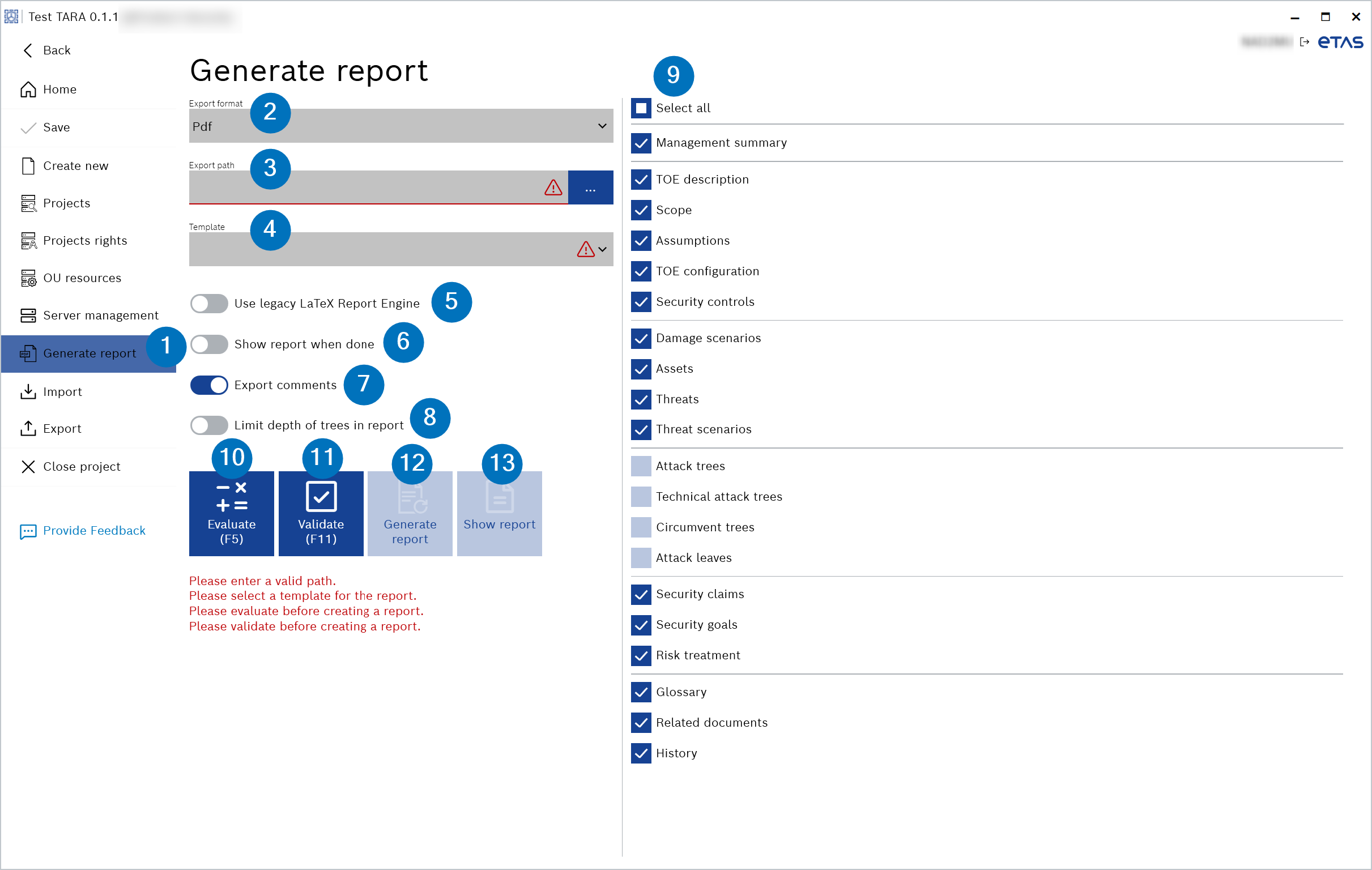
Fig. 4: The "Generate report" window - PDF
- Select pdf from the "Export format" drop-down menu.
- Enter the export path in the "Export path" field or click ... to browse and select it.
- Select the template from the "Template" drop-down menu.
|
Note |
|---|
|
You can customize the templates, but you must not modify the binding variables. The software uses these variables to fill content, and altering them results in erroneous behavior. |
- Decide whether you want to use legacy LaTeX report engine with the "Use legacy LaTeX Report Engine" toggle button.
- If enabled, you can select LaTeX templates from the "Template" drop-down menu. It then uses the LaTeX engine to generate the PDF.
- If disabled, you can select HTML templates from the "Template" drop-down menu. It does not use the LaTeX engine; instead, it uses the the HTML templates with values and convert them to PDF.
- Decide whether you want to show the report when done with the "Show report when done" toggle button. This step is optional.
- Decide whether you want to export comments with the "Export comments" toggle button. This step is optional.
- Decide whether you want to limit depth of trees in report with the "Limit depth of trees in report" toggle button. This step is optional and only applicable for Attack Potential methodology.
- Activate or deactivate the check boxes to configure the information to include in the report.
|
Note |
|---|
|
You must evaluate and validate the project before generating a PDF report. |
- Click Evaluate.
The report is evaluated, and the "Generate report" option is enabled.
- Click Validate. It is not mandatory to solve errors and warnings when generating a report. This step is optional.
The report is validated.
- Click Generate report.
The report is successfully generated.
- Click Show report, if the "Show report when done" toggle button is not activated in Step 5.
- The report is displayed.